
Cydia Download for
iPhone and iPad
Explore Cydia download options and jailbreak compatibility for iOS 12–27. Find the guide for your device and software version, compare sideloading alternatives, and access the browser-based CydiaFree Online App.
CydiaFree is an independent informational guide and browser-based customization platform. Using the CydiaFree web app does not perform a system jailbreak or install the original Cydia package manager.

Quick Answer: Can you download traditional Cydia on modern iOS (17, 18, 26, 27)?
No. Original Cydia requires a compatible jailbreak. The reviewed Dopamine and palera1n projects do not list iOS 27 support. On unsupported firmware, explore CydiaFree's browser-based customization resources and guides, or check a supported IPA sideloading method for compatible apps.
Cydia Download: What You Need to Know
Cydia is a package manager created by Jay Freeman, also known as Saurik, for jailbroken devices. It helps users find, install, update, and remove software distributed through repositories. The original Cydia is installed through a compatible jailbreak method, rather than downloaded as an ordinary App Store app. Learn about Cydia from its official website.
Jailbreaking modifies the device's software environment so that compatible software can operate beyond its usual restrictions. It changes the security assumptions of the system, which is why the method, supported version, and installed packages matter. Apple explains the implications of unauthorized iOS modification.
The first question is what you want to do. Installing system tweaks requires a different setup from browsing an online catalogue, saving a website to your Home Screen, or sideloading an IPA file. Choosing the right route helps you avoid unnecessary downloads and instructions that do not apply to your phone.
Use this page to understand those differences before continuing. You can follow the device preparation steps, check out the best Cydia tweaks and repos, compare IPA and DEB packages, or open the CydiaFree online area. The interactive finder and compatibility matrix below provide a clear starting point.
Before choosing a method, read our Cydia jailbreak guide to check device compatibility, compare tools, and understand the difference between Cydia, Sileo, and a browser-based app.
Find your device guide
Check your model and installed software version, then choose the relevant guide. Compare both details with the requirements of the jailbreak project you are considering before following its installation instructions.
Understand your download
Learn the difference between an IPA app, a DEB package, and a web app. The file type and installation method determine what you can do with a download and which tools you need.
Explore the online app
Browse CydiaFree's utility and customization listings in your browser. Read each item's description and access requirements before continuing, especially when a listing opens another service or requires a membership.
Current iOS and Device Compatibility
The newest Apple software is not automatically jailbreakable. Support depends on the exact iPhone model, processor architecture, and the tool's published documentation. Use our quick tool or the detailed reference table below to see what applies to your device.
Find Your iOS Guide
Guide Finder: Choose your software version or branch and device group above. Confirm the full model and software version in Settings → General → About before choosing a tool.
Documentation reviewed: October 27, 2026.
| iOS / iPadOS branch | Current status | What to check | Recommended Method |
|---|---|---|---|
| iOS 27.2 / iPadOS 27.2 | Public releases dated October 26, 2026. | The reviewed Dopamine and palera1n documentation does not list iOS 27.2 support. | iOS 27.2 Cydia and jailbreak guide |
| iOS 26.7.2 / iPadOS 26.7.2 | Security releases dated October 26, 2026. | This release is outside Dopamine's documented iOS 26.0–26.0.1 range for compatible A12/A13 devices. | iOS 26.7.2 jailbreak status |
| iOS 18.7.11 / iPadOS 18.7.11 | Released October 26, 2026 for iPhone XS, XS Max, XR and iPad 7th generation. | The iPhone release is outside Dopamine's documented range. The palera1n device guide lists iPadOS 18.7.11 for iPad 7th generation. | iOS 18.7.11 device compatibility |
| iOS / iPadOS 17 | Compatibility varies by device and firmware. | Check the exact version and chip against the selected jailbreak project's requirements. | iOS 17 compatibility guide |
| iOS / iPadOS 16 and 15 | Methods are available for supported device and firmware combinations. | Follow the tool's current requirements and use packages compatible with its jailbreak environment. | iOS 16 guide / iOS 15 guide |
| iOS 12–14 and older firmware | Legacy device and firmware guides. | Original Cydia availability depends on the selected jailbreak and its documented compatibility. | iOS 14 guide / iOS 12 guide |
Primary documentation reference: Apple's software release records, the official Dopamine project, and the official palera1n documentation.
Cydia Download for iOS 27: iOS 27.2 and Jailbreak Status
Apple released iOS 27.2 and iPadOS 27.2 on October 26, 2026. These are public releases for compatible devices.
Can I install original Cydia on iOS 27.2?
Original Cydia requires a compatible jailbreak environment. The reviewed Dopamine and palera1n documentation does not list iOS 27.2 support. Read our iOS 27.2 Cydia and jailbreak guide for the current compatibility details.
Looking for iOS 26.7.2 or iOS 18.7.11?
See our iOS 26.7.2 jailbreak status guide or iOS 18.7.11 and iPadOS 18.7.11 compatibility guide. Check the exact device model as well as the installed firmware before choosing a method.
What can I use without a compatible jailbreak?
Explore CydiaFree's browser-based resources and guides for customization ideas. The web app does not install original Cydia or perform a system jailbreak. For compatible IPA apps, read our Sideloadly installation and signing guide. You can also compare Cydia alternatives.
Sources: Apple security releases, Dopamine documentation, and palera1n.
CydiaFree Free vs Pro Membership
Enjoy core on-device customization free forever, or upgrade to Pro for exclusive tweaks and priority access.
| Features & Capabilities | CydiaFree Free | CydiaFreePRO |
|---|---|---|
| Guide Coverage | Public guides for iOS 12–27 | Membership does not extend jailbreak or device compatibility |
| No-PC Safari Installation | Full Access | Full Access (Zero Ad Delays) |
| Tweaks, Themes & Wallpapers | Standard Repository Listings | Exclusive VIP Tweaks & Premium Icon Packs |
| App Sideloading Guidance | Basic Sideloadly Guides | IPA Resources & Signing Guidance |
| Customer Assistance | Documentation & FAQs | Priority One-on-One Technical Support |
No contract required. Instant web activation on any iPhone or iPad.
How to Download Cydia Without a Computer (No PC Method)
A significant number of iOS users prefer installing tweaks and custom apps without connecting their iPhone to a PC or Mac. Here is how modern on-device installation works:
1. Direct Safari Web Installation (CydiaFree App)
The simplest computer-free method is using the CydiaFree online platform. Open Safari on your iPhone or iPad, tap Open the CydiaFree Online App in Safari and follow the on-screen options. You can add the web app to your Home Screen for faster access without installing a system jailbreak.
2. On-Device Sideloading (TrollStore & Direct IPAs)
TrollStore's documented support covers iOS/iPadOS 14.0 beta 2–16.6.1, 16.7 RC (build 20H18), and 17.0. The 16.7 RC exception does not apply to other 16.7.x releases. iOS/iPadOS 18, 26 and 27 are outside this range. Check the official TrollStore documentation for the installation method applicable to your exact device and firmware.
3. When is a Computer Mandatory?
Some jailbreak and sideloading workflows require a Mac, Windows PC, or Linux computer. Examples include palera1n installation workflows and desktop signing tools such as Sideloadly or AltStore. The CydiaFree Online App itself can be accessed directly through Safari without a computer.

Step-by-Step Device Preparation
A reliable installation begins with exact device verification. A download button alone cannot guarantee that an exploit supports your hardware and iOS build. Follow these steps prior to setup.
1. Record your model and software version
On your iPhone or iPad, open Settings → General → About. Note the model name and the installed iOS or iPadOS version. Include the complete version number when checking instructions: two releases in the same major version can have different support. Apple explains where to find your software version.
Do not rely only on a device's release year or an outdated tutorial. If an instruction specifies a chip family (e.g., A12 Bionic vs A17 Pro), compare your model with the project's supported hardware list.
2. Match your device to a documented method
Open the relevant guide in the iOS version section, then read the jailbreak developer's own requirements. Check supported device ranges, computer requirements, and installation steps. A method for an older iPhone does not automatically apply to a newer model running software with a similar name.
If your exact combination is outside the documented range, stop at that point. Repeating an installer or paying third-party sites cannot bypass hardware security boundaries. You can always use the CydiaFree web app for browser-level tweaks.
3. Check which package manager the method provides
Some jailbreak environments provide Cydia, while others use Sileo or Zebra. Follow the package manager instructions for the selected jailbreak. For example, legacy tools like Unc0ver provide Cydia natively, whereas modern tools like Dopamine configure rootless package managers like Sileo.
4. Prepare backups before installation
Read the full procedure once, including what happens after a reboot and how to recover from a failed attempt. Keep an up-to-date iCloud or computer backup ready. Always obtain tools from their official open-source project sources.
5. Understand restart behavior (Tethered vs Untethered)
Distinguish between installing a tool and keeping it active. With semi-tethered methods, restarting your device returns it to an unjailbroken state until reactivated. In contrast, CydiaFree web apps remain persistently accessible across reboots without requiring re-jailbreaking.
Cydia Apps, Tweaks and Repositories
People often use “Cydia apps” to describe several distinct categories of software. A standalone app has its own interface; a tweak hooks into existing iOS frameworks; a theme alters icons and interfaces; and a library supplies components used by other packages. Understanding these differences helps keep your device stable. Check out our curated list of the best Cydia tweaks and repos to get started.

How Cydia repositories and sources work
A repository is a software source that a package manager can read. It publishes package information and downloads so that users can browse releases and receive updates. One source can contain packages from several developers; a developer may also maintain a dedicated repository for their own work.
Always obtain repository URLs from the developer's official website or verified GitHub project. In your package manager, use the Sources tab to add the address, then let the repository refresh finish.
Rootful vs Rootless Tweak Architectures
Package compatibility depends on the selected jailbreak environment. Dopamine uses a rootless setup, while palera1n documents different environment options. Match each DEB package to the firmware, architecture, and environment required by your selected method.
Troubleshooting Unresponsive Sources
If a source fails to refresh, verify the URL and your network connection first. For installation errors, check whether the tweak depends on an incompatible architecture. Avoid installing outdated legacy tweaks on modern versions to prevent springboard crash loops.
Cydia IPA vs DEB: Which File Do You Need?
An IPA is an iOS application archive used in supported app installation workflows via tools like Sideloadly. A DEB is a Debian package that contains software binaries, package metadata, dependencies, and installation scripts. Changing a filename extension does not convert the package or its architecture. See Debian's description of binary packages.
| Item | What it is | What to check |
|---|---|---|
| IPA file | An archive containing an iOS app | Developer signature, signing method, device compatibility, and certificate lifespan |
| DEB file | A package used by package managers | Package repository, dependencies, rootful/rootless architecture, and firmware support |
| Web app / Shortcut | Browser-based application added to Home Screen | Website security, permissions, sandbox status, and account requirements |
| Configuration profile | File applying configuration settings to iOS | Signed issuer, description, and permissions displayed before installation |
Modern Alternatives: Sileo, Zebra, TrollStore & Sideloadly
In modern iOS environments, several tools have emerged to complement or replace traditional Cydia workflows:
1. Sileo and Zebra (Package Managers)
Sileo is a swift, modern package manager designed for rootless jailbreaks like Dopamine. Zebra offers an open-source, lightweight alternative that supports large repository lists with rapid refresh times. Both fully support modern Debian package structures.
2. TrollStore (Permanent IPA Installer)
TrollStore's documented support covers iOS/iPadOS 14.0 beta 2–16.6.1, 16.7 RC (build 20H18), and 17.0. The 16.7 RC exception does not apply to other 16.7.x releases. iOS/iPadOS 18, 26 and 27 are outside this range. Check the official TrollStore documentation for the installation method applicable to your exact device and firmware.
3. Sideloadly & AltStore (Desktop Sideloading)
If you have an IPA file you wish to run without jailbreaking, tools like Sideloadly allow you to sign and install apps using your Apple ID via Mac or PC. Apps installed with a free account require refreshing every 7 days. If an IPA signing attempt fails, your device is not detected, Developer Mode causes problems, or an installed app expires, see our Sideloadly errors and troubleshooting guide for step-by-step fixes.
Not sure which option fits your device? Compare Cydia alternatives for iPhone and iPad, from jailbreak package managers and IPA installers to the CydiaFree web app.
About CydiaFree & Editorial Standards
CydiaFree is an independent informational resource dedicated to documenting iOS customization, jailbreak developments, and sideloading tools since 2016. Our goal is to provide honest, technically accurate advice rather than making unverified claims about untethered jailbreaks on beta firmware.
CydiaFree is entirely independent of Apple Inc., Jay Freeman (Saurik), and third-party development teams. Any references to trademarks or open-source utilities are for identification and educational purposes only.
Editorial & Testing Methodology
Our compatibility recommendations are reviewed against Apple software and security releases and the published documentation of jailbreak projects such as Dopamine and palera1n. We distinguish verified jailbreak support from experimental research and browser-based customization methods.

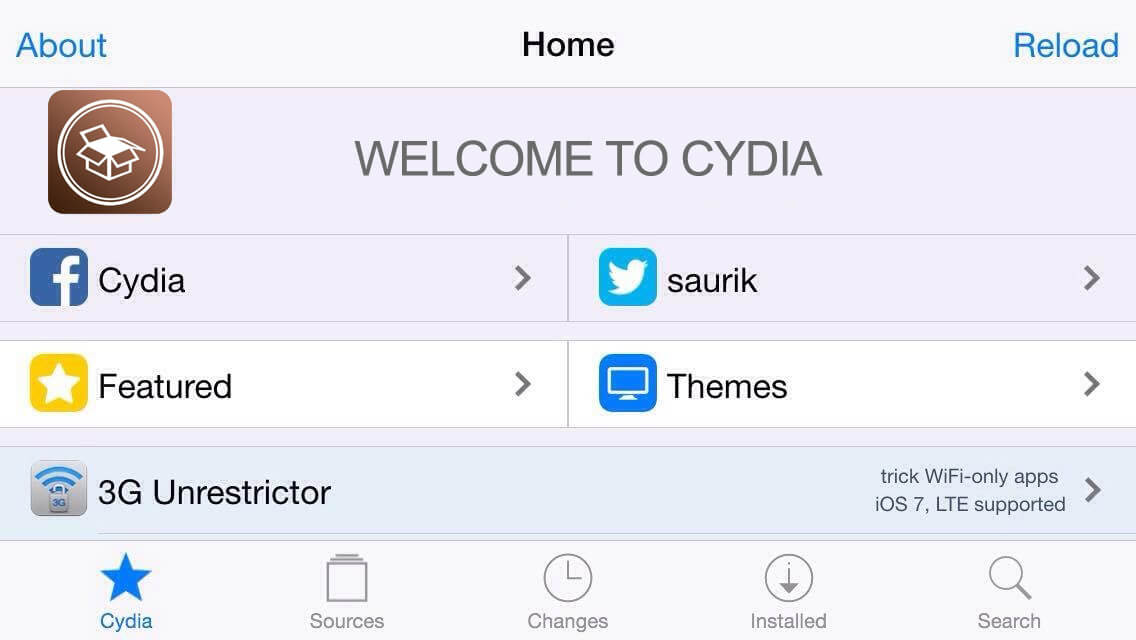
Historical reference: classic Cydia interface. Modern iOS devices utilize rootless managers or CydiaFree web utilities.
How to Use the CydiaFree Online App
The CydiaFree online app provides an on-device catalogue where you can browse popular tweaks, wallpapers, and web-based utilities directly in Safari without altering your system partition.
1. Open in Safari
Visit CydiaFree Online App on your iPhone or iPad. Select the categories that match your interest.
2. Add to Home Screen
Tap the Safari Share button and choose Add to Home Screen. This places an instant launcher icon on your home screen for quick daily access without needing repeated browser navigation.
3. Safe & Reversible
Because the app runs within Safari's secure sandbox, removing it is as simple as deleting the app icon. It does not leave persistent modifications or interfere with iOS updates.
Frequently Asked Questions
Is Cydia free to download?
The original Cydia package manager was free to use on compatible jailbroken devices. CydiaFree provides free access to its main browser-based Cydia-style experience and informational guides, while some optional CydiaFree Pro features or services may require a separate membership.
Can I download Cydia on modern iOS versions (iOS 17, 18, 26, 27)?
Original Cydia requires a compatible jailbreak. The reviewed Dopamine and palera1n documentation does not list iOS 27 support. Older firmware depends on the exact model and version. CydiaFree provides separate browser-based customization resources and guides.
What is the latest iOS version and can it be jailbroken?
As of October 27, 2026, Apple's latest public releases are iOS 27.2 and iPadOS 27.2, released on October 26. The reviewed Dopamine and palera1n documentation does not list iOS 27.2 support. Original Cydia requires a compatible jailbreak. CydiaFree provides a separate browser-based service.
Can I install Cydia without a computer?
You can access the CydiaFree Online App directly through Safari without using a PC or Mac. This provides a browser-based Cydia-style experience and does not install the original Cydia package manager or perform a system jailbreak. Traditional jailbreak installation requirements depend on the specific jailbreak tool and firmware.
Will installing Cydia or using CydiaFree affect Apple support or warranty?
Using the CydiaFree Online App is different from jailbreaking because the web app runs through Safari and does not provide system-level root access. A traditional jailbreak modifies the software environment and may affect support or service eligibility depending on the circumstances. Check Apple's current support terms before modifying system software.
Why did my sideloaded app stop working after 7 days?
Apps signed with a free Apple developer account commonly need to be refreshed or re-signed after seven days. Tools such as Sideloadly or AltStore can be used to sign compatible IPA files again. The CydiaFree web app does not use the same IPA signing process, so the seven-day free-account signing cycle does not apply to the web app itself.
If the app still will not open or the refresh fails, follow our Sideloadly app expiry and refresh troubleshooting guide.
What is the difference between Cydia, Sileo, and Zebra?
Cydia, Sileo, and Zebra are package-manager interfaces associated with jailbroken iPhones and iPads. Cydia is the older traditional package manager, while Sileo and Zebra are modern alternatives commonly used with newer rootless jailbreak environments. Availability depends on the jailbreak and firmware being used.
What is the difference between an IPA and a DEB file?
An IPA is an iOS or iPadOS application archive commonly used for app installation or sideloading. A DEB is a Debian package format commonly used by jailbreak package managers such as Cydia, Sileo, or Zebra to install tweaks and other packages inside a compatible jailbroken environment.
Cydia Gallery: Visual Themes & Historical Interfaces
Explore classic Cydia layouts, repository manager designs, and custom UI setups from past jailbreak communities. Note that these show historical setups and do not depict Cydia running natively on current beta firmware.
-
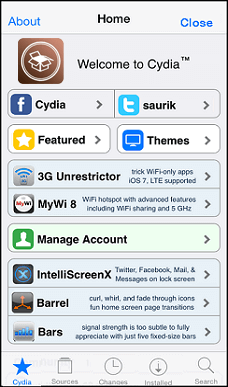
Classic Cydia Home screen with featured packages. 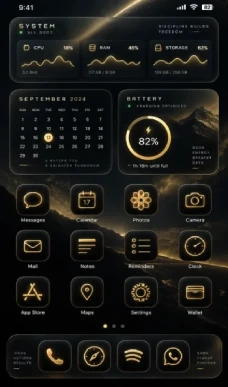
Customized iOS Home Screen with modern aesthetic themes. 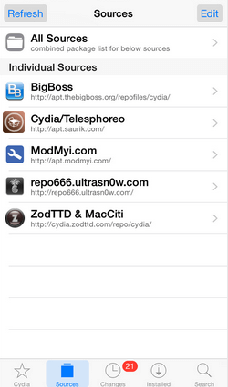
Cydia Sources screen displaying a repository list. -
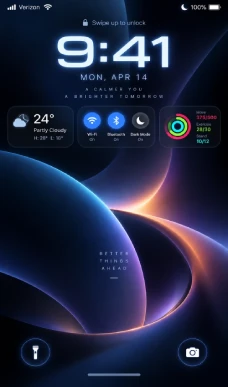
Custom lock screen widgets and dynamic interface controls. 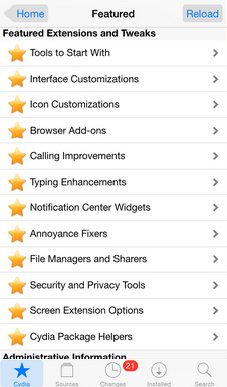
Cydia Featured screen with tweak categories. 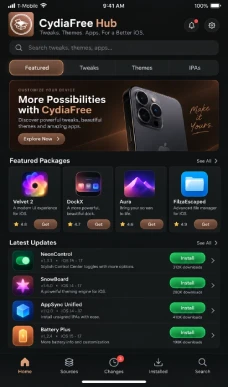
CydiaFree Online App interface displaying themes and tweak listings.
Cydia Guides by iOS Version
Find specialized walkthroughs for your device's exact firmware generation:
iOS 27, iOS 26 and iOS 18
Read our iOS 27.2 Cydia and jailbreak guide, iOS 26.7.2 jailbreak status guide, or iOS 18.7.11 and iPadOS 18.7.11 compatibility guide. Each guide explains device requirements, documented tool support and available alternatives.
iOS 17, iOS 16 and iOS 15
Detailed steps for iOS 17, iOS 16, and iOS 15 environments covering Dopamine, Sileo, and palera1n.
Legacy Firmware (iOS 14 to iOS 12)
Historical guides for iOS 14, iOS 13, and iOS 12 featuring Unc0ver and checkra1n procedures.
Ultra-Legacy Firmware (iOS 10, 9 & 7)
For users preserving 32-bit hardware running early iOS iterations, explore our classic guides for iOS 10, iOS 9, and iOS 7 featuring tools like Pangu, evasi0n, and h3lix.
Security Guidelines Before Modifying Your Device
Always create a full backup using iCloud or your computer prior to attempting any firmware changes. Apple explains how to back up an iPhone securely. If your phone is essential for daily banking, work profiles, or enterprise security, avoid installing unverified root packages that could compromise system integrity.
Documentation reviewed: October 27, 2026. Prepared by the CydiaFree Research Team using Apple's release records and published jailbreak-project documentation. Compatibility depends on the exact device, firmware and installation method.